
1. From the Sysnet Toolbar click on the Utilities Icon 
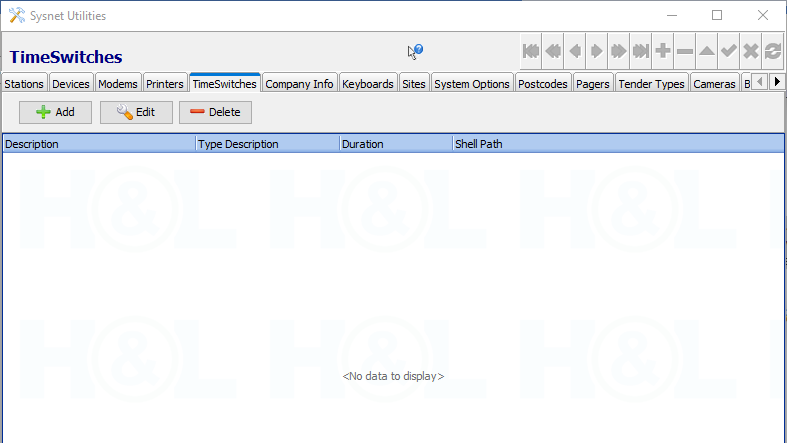
2. Click on the <TIMESWITCHES> tab
3. Click on the <ADD> button
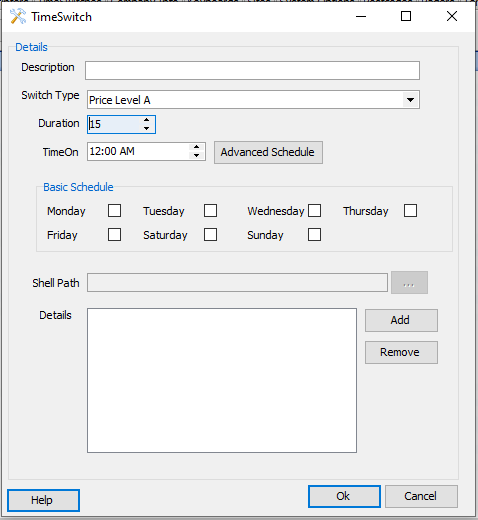
4. Select the TIME SWITCH TYPE from the drop down list
5. Enter the DURATION in minutes
6. Enter the Start Time
7. Select the Day(s) of the week which apply to the time switch
8. Press <ADD> to select additional information, for example:
- For an End of Shift Time Switch select the relevant locations
- For Price Level Time Switches select the relevant stations
9. For scheduling and recurring options on the Time Switch, click on the <ADVANCED SCHEDULE> button:
- Choose start, end times and duration (minutes)
- Choose the recurrence pattern
- Hourly – set the hourly recurrence rate and specify the minutes it is valid for during the recurrence pattern
- Daily – set the daily recurrence rate or choose “Every Weekday”
- Weekly – set the weekly recurrence rate and specify the day(s) of the week that it is valid
- Monthly – set the required day and the recurrence rate for the month, or specify the relevant custom dates during the month for the required rate of recurrence
- Yearly – set the required month and date of the specified month or choose the relevant custom dates during the specified month for the required rate of recurrence
- Choose the Range of Recurrence
- Start date can be defined here also
- No end date
- End after the desired number of occurrences
- Specify the end date
10. Click <OK> to complete the setup of the Time Switch and return to the list
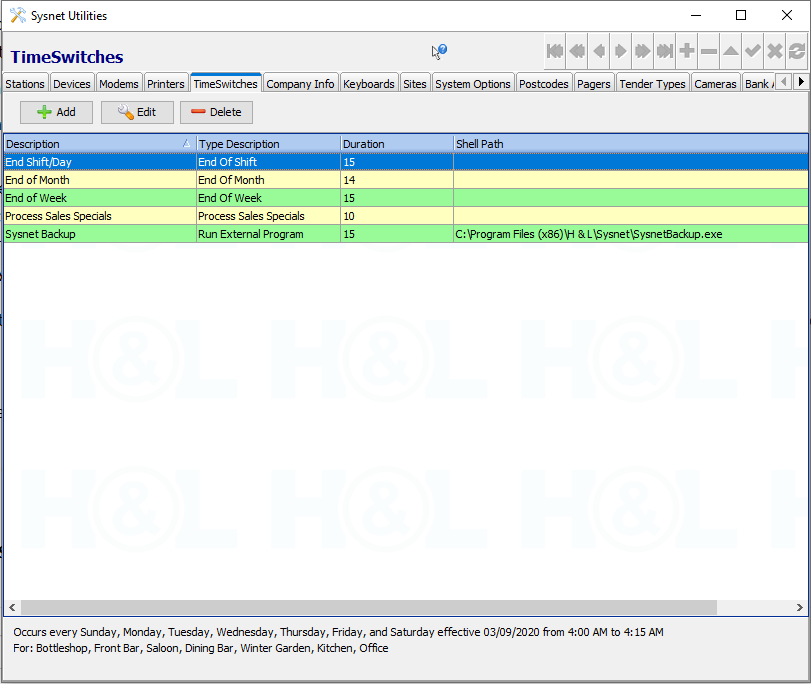
11. Highlighting a Time Switch from the <LIST> view will display details of the time switch at the bottom of the window
Comments
0 comments
Please sign in to leave a comment.